Complete Walkthrough: Setting Up FlexStream TV on Amazon Fire TV Stick in 2026
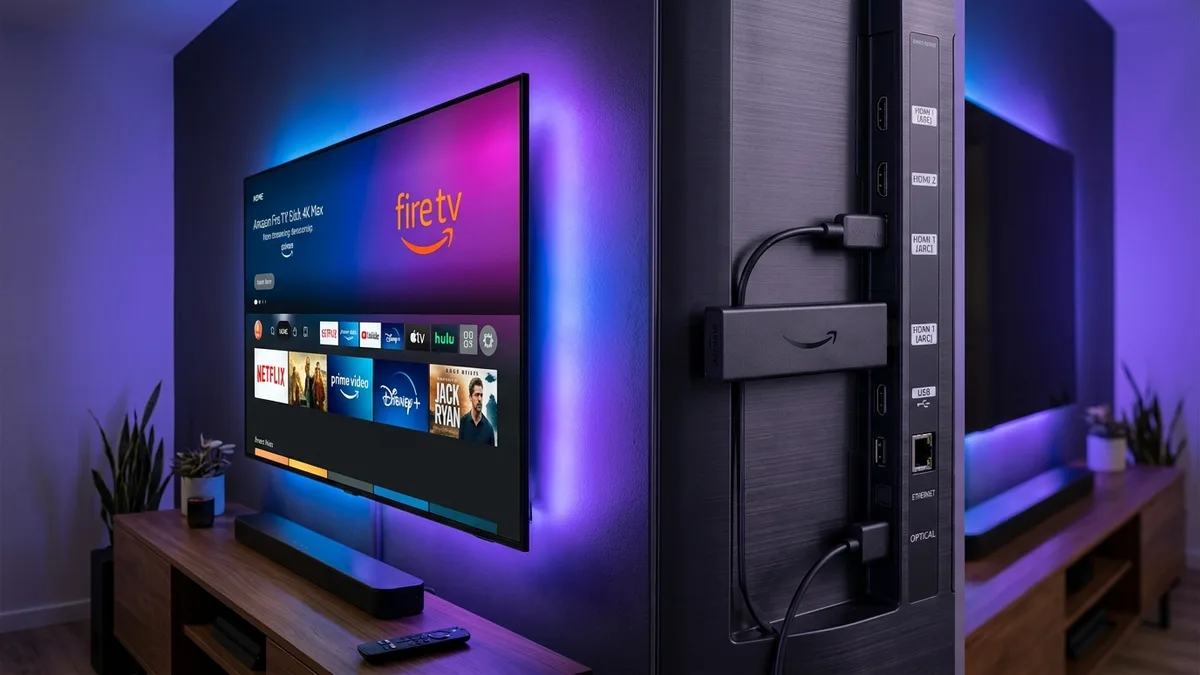
Amazon's Fire TV streaming hardware—ranging from the budget-friendly Fire TV Stick HD up to the top-performing Fire TV Stick 4K Max and Fire TV Cube—is widely considered the premier media dongle for cord-cutters. Thanks to its hardware-accelerated video pipeline, modern Fire OS models handle uncompressed 60 frames per second sporting feeds and high-bitrate 4K UHD video effortlessly.
Connecting your FlexStream TV service to an Amazon Fire Stick requires zero technical background and takes under five minutes. This step-by-step reference covers the entire onboarding process: unhiding developer permissions, grabbing the official Downloader utility, installing the award-winning TiviMate media player, and optimizing playback for buffer-free live events.
Quick Navigation
1. Unhiding Developer Permissions in Fire OS 2. Grabbing the Downloader Application 3. Deploying and Configuring TiviMate IPTV Player 4. Alternative Setup: IPTV Smarters Pro 5. Vital Buffer Reduction & Wi-Fi Tuning Tips 6. Summary & Recommended Next Steps1. Unhiding Developer Permissions in Fire OS
To run professional streaming clients on Fire OS, Amazon requires granting permission to install apps outside its native Appstore. Recent software updates tuck this toggle inside an unlisted developer menu. Follow these steps to reveal it:
- Navigate to the Settings (cog icon) situated on the far right of your Fire TV home bar.
- Scroll downward and click on My Fire TV.
- Select the About category at the top of the menu.
- Highlight your device's primary name (e.g., Fire TV Stick 4K Max) and press the Select (center circle) button on your remote control 7 times consecutively. A confirmation toast will pop up stating: "No need, you are already a developer."
- Tap Back on your remote once. You will now observe a newly visible sub-menu titled Developer Options.
- Enter Developer Options, locate Install Unknown Apps, and ensure permissions are ready to be granted.
2. Grabbing the Downloader Application
Downloader represents the safest and most reliable tool for fetching third-party Android application packages (APKs) straight onto your television.
- Head back to the main home interface and select Find, then choose Search.
- Using the virtual keyboard or voice search on your Alexa remote, search for Downloader.
- Click on the orange Downloader tile developed by AFTVnews and select Download / Get.
- When the installation finishes, open Downloader and tap Allow so the application can store downloaded installation packages locally.
3. Deploying and Configuring TiviMate IPTV Player
While various media applications exist, TiviMate offers the most fluid, cable-like interface for Fire TV owners, providing lightning-fast channel surfing and an ultra-responsive Electronic Program Guide (EPG).
- Launch Downloader and click into the central URL address field.
- Type the direct quick-code 278077 (or enter
tivimate.com) and press Go. - Downloader will automatically fetch the latest APK package. Once finished, hit Install, followed by Done. (You may delete the APK file to conserve storage).
- Launch TiviMate and choose Add Playlist.
- Select Xtream Codes. This is the optimal protocol for FlexStream TV, syncing live feeds, on-demand movies, and TV schedules automatically.
- Type in your credentials from your FlexStream TV activation dispatch:
- Server URL: The secure portal address delivered via WhatsApp.
- Username: Your private subscriber account ID.
- Password: Your alphanumeric access key.
- Ensure the option marked Include VOD is checked, then tap Next.
- Select Done. TiviMate will spend about 20–40 seconds pulling in your 28,000+ live stations and 140,000+ movie titles!
4. Alternative Setup: IPTV Smarters Pro
If you enjoy a tile-based UI that neatly segregates Live Channels, Cinema Releases, and Multi-Season Box Sets into separate home tiles, IPTV Smarters Pro is another excellent choice. In Downloader, type code 80911 to download Smarters Pro. Open the app, select Login with Xtream Codes API, and enter your credentials.
5. Vital Buffer Reduction & Wi-Fi Tuning Tips
To safeguard seamless 4K 60 FPS playback during peak football games or high-volume pay-per-view events, apply these quick tuning recommendations:
- Switch to 5 GHz Wi-Fi: The 2.4 GHz frequency is frequently congested by household smart appliances. Connecting your Fire Stick to a 5 GHz wireless network supplies significantly wider bandwidth and virtually eliminates frame drops.
- Routine Cache Flush: Clear accumulated guide images once a month via Settings → Applications → Manage Installed Applications → TiviMate → Clear Cache.
- Buffer Length Adjustment: Inside TiviMate’s Settings → Playback, set your stream buffer size to Medium or Large. This creates a data cushion that prevents micro-stutters during momentary home network fluctuations.
Transform Your Fire Stick into an Entertainment Powerhouse
Unlock 28,000+ live broadcast stations, championship sports in 60 FPS, and over 140,000 on-demand blockbusters without cable company contracts.
6. Summary & Recommended Next Steps
Configuring FlexStream TV on an Amazon Fire TV Stick completely removes the burden of $180+ monthly cable bills while providing a substantially larger channel selection. With our redundant multi-gigabit server nodes in North America and Western Europe, you are guaranteed crisp, lag-free viewing around the clock.